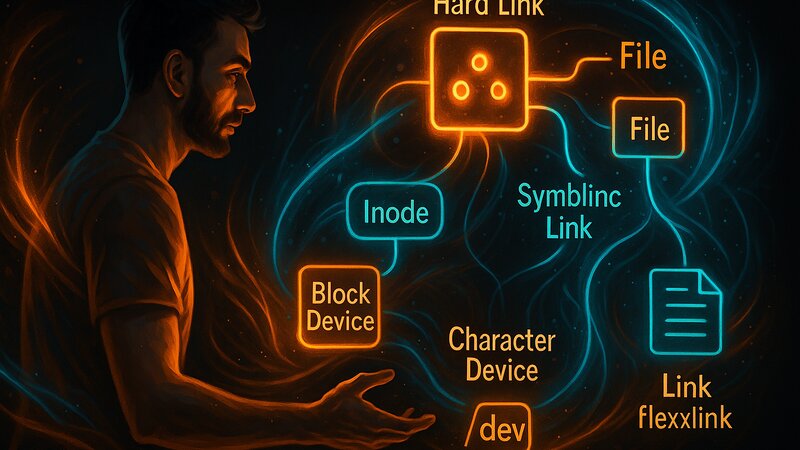
Unix supports different file types—regular files, directories, links, and device files. Each type has specific characteristics and use cases. Links provide multiple names for the same file or references to files in other locations. Device files in /dev represent hardware as files—hard disks, USB drives, and terminals are accessed through standard file operations.
The inode concept separates file names from file contents. An inode stores the file metadata and storage locations, while the file name is only a reference to it. This separation enables hard links—multiple names point to the same inode and therefore to the same data.
The Inode Concept
What Is an Inode
An inode (Index Node) is a data structure that describes a file. Every file has exactly one inode, identified by a unique number. The inode contains:
- File size
- Permissions (rwx)
- Owner and group
- Timestamps (creation, modification, last access)
- Number of hard links
- Pointers to the data blocks on disk
The inode does not contain the file name. The file name exists in the parent directory, which associates the name with the inode number. Technically, a directory is a list of file names and their corresponding inode numbers.
$ ls -i file.txt
12345678 file.txt
The -i option displays the inode number—12345678 in this example. This number is unique within a filesystem. Two files on the same partition cannot have the same inode number.
$ stat file.txt
  File: file.txt
  Size: 2048            Blocks: 8          IO Block: 4096   regular file
Device: 801h/2049d      Inode: 12345678    Links: 1
Access: (0644/-rw-r--r--)  Uid: ( 1000/ michael)   Gid: ( 1000/ michael)
The stat command displays all inode information. The inode number is 12345678, the file has one link (its file name), the permissions are 0644, and the owner is michael. The data blocks on disk are referenced through the inode—not through the file name.
Directories as Lists of Inodes
A directory is a special file containing name-to-inode mappings. When you run ls /home, the system reads the /home directory file, finds the inode numbers for all entries, reads the corresponding inodes for details (size, permissions), and displays the information.
$ ls -id /home/michael
1048577 /home/michael
The directory itself also has an inode (here 1048577). Directories always contain at least two entries: . (the current directory, pointing to its own inode) and .. (the parent directory, pointing to the parent directory’s inode).
Understanding Hard Links
Multiple Names for One File
A hard link is an additional directory entry for an existing inode. Both names point to the same data—there is no “original” file and “link,” but rather two equivalent names for the same content.
$ echo "Test data" > original.txt
$ ln original.txt copy.txt
$ ls -li original.txt copy.txt
12345678 -rw-r--r-- 2 michael michael 10 Oct  6 18:30 copy.txt
12345678 -rw-r--r-- 2 michael michael 10 Oct  6 18:30 original.txt
Both files have the same inode number (12345678). The 2 after the permissions indicates the link count—two names refer to this inode. Changes made to copy.txt appear in original.txt and vice versa—they are not two copies, but two names for the same file.
$ echo "New line" >> copy.txt
$ cat original.txt
Test data
New line
The change made through copy.txt is immediately visible in original.txt. The inode stores the data, and both names access it.
Deletion and the Link Counter
$ rm original.txt
$ ls -li copy.txt
12345678 -rw-r--r-- 1 michael michael 21 Oct  6 18:32 copy.txt
After rm original.txt, copy.txt still exists—the link counter has dropped from 2 to 1. The inode remains, the data remains, only the name original.txt has been removed from the directory. The filesystem releases the inode and its data blocks only when the link counter reaches 0.
$ rm copy.txt
$ ls -li copy.txt
ls: cannot access 'copy.txt': No such file or directory
Now the link counter is 0—the inode is released and the data is deleted. As long as at least one hard link exists, the data remains available. This makes hard links useful for backups—even if one name is deleted accidentally, the data is still accessible through the other link.
Limitations of Hard Links
Hard links work only within a single filesystem. A link between /home (on partition sda1) and /var (on partition sda2) is not possible because each filesystem has its own inode numbers.
$ ln /home/michael/file.txt /var/backup/file.txt
ln: failed to create hard link '/var/backup/file.txt' => '/home/michael/file.txt': Invalid cross-device link
The “cross-device link” error indicates the problem—different filesystems have different inode tables. Symbolic links are used for links across filesystem boundaries.
Hard links to directories are prohibited (except for . and ..). They would allow cycles in the filesystem tree—for example, directory A containing B while B contains A. Tools such as find or du would then recurse indefinitely.
Symbolic Links (Soft Links)
References to Paths
A symbolic link (symlink, soft link) is a special file that contains the path to another file. Unlike hard links, symlinks do not point to inodes but to file names. They work across filesystem boundaries and can point to directories.
$ ln -s /home/michael/documents/important.txt shortcut.txt
$ ls -l shortcut.txt
lrwxrwxrwx 1 michael michael 35 Oct  6 18:45 shortcut.txt -> /home/michael/documents/important.txt
The l at the beginning (lrwxrwxrwx) indicates a symbolic link. The -> arrow shows the target. The permissions rwxrwxrwx are standard for symlinks—the actual access permissions come from the target file, not from the link itself.
$ cat shortcut.txt
Important content
Reading shortcut.txt follows the link and reads /home/michael/documents/important.txt. For the user, the difference is transparent—the file behaves like a regular file.
Absolute vs. Relative Symlinks
Symlinks can contain either absolute or relative paths:
$ ln -s /usr/bin/python3 python
$ ls -l python
lrwxrwxrwx 1 michael michael 16 Oct  6 18:50 python -> /usr/bin/python3
This link contains an absolute path (/usr/bin/python3). It works from any location—./python runs Python regardless of the current directory.
$ cd /home/michael/projects
$ ln -s ../documents/file.txt link.txt
$ ls -l link.txt
lrwxrwxrwx 1 michael michael 23 Oct  6 18:52 link.txt -> ../documents/file.txt
This link contains a relative path (../documents/file.txt). It works from /home/michael/projects—link.txt points to /home/michael/documents/file.txt. If the directory is moved, the relative link remains functional as long as the directory structure is preserved.
Absolute links point to fixed paths—they become invalid if the target is moved. Relative links remain functional when the source and target are moved together.
Invalid (Broken) Links
$ ln -s nonexistent.txt link.txt
$ ls -l link.txt
lrwxrwxrwx 1 michael michael 17 Oct  6 18:55 link.txt -> nonexistent.txt
$ cat link.txt
cat: link.txt: No such file or directory
Symlinks can point to non-existent targets—these are known as “broken links.” The system creates the link without verifying whether the target exists. Only when the link is accessed does it fail. ls -l displays the link correctly, while cat fails with “No such file or directory.”
$ find . -type l -! -exec test -e {} \; -print
./link.txt
This command finds all broken links in the current directory. -type l filters symlinks, -! -exec test -e {} \; checks whether the target exists (and negates the result), and -print displays the broken links.
Links to Directories
$ ln -s /var/log logs
$ cd logs
$ pwd
/home/michael/logs
$ pwd -P
/var/log
The logs symlink points to /var/log. Running cd logs works because symlinks to directories are allowed. pwd displays the symbolic path (/home/michael/logs), while pwd -P displays the physical path (/var/log).
Directory symlinks are practical for frequently used paths. /usr/bin/X11 is often a symlink to /usr/bin for historical compatibility. Many tools expect programs in /usr/bin/X11, and the symlink redirects them to /usr/bin.
Hard Links vs. Symbolic Links
When to Use Each Link Type
Use hard links when:
- Backup protection is required (data remains available if one link is deleted)
- The files are on the same partition (hard links cannot cross filesystem boundaries)
- Working with regular files (not directories)
- Completely transparent behavior is desired (no distinction between the original and the link)
Use symbolic links when:
- Linking across filesystem boundaries
- Creating links to directories
- A visible distinction between the link and the target is desired
- Flexible path redirection is needed (the target may change)
Comparison Table
| Property | Hard Link | Symbolic Link |
|---|---|---|
| Works across filesystems | No | Yes |
| Works with directories | No | Yes |
| Recognizable as a link | No (same inode) | Yes (own inode, type l) |
| Target deleted | Data remains available | Link becomes invalid |
| Overhead | Minimal (directory entry only) | Minimal (small file containing a path) |
| Transparency | Completely transparent | Visible with ls -l |
Practical Examples
Backups with Hard Links:
$ cp -al /data/project/ /backup/project-2025-10-06/
The -l option creates hard links instead of copies. The backup consumes very little additional disk space—only new or modified files are actually copied. Unchanged files are hard links to the originals. Incremental backup tools such as rsync use this technique.
Flexible Versions with Symlinks:
$ ls -l /usr/bin/python*
lrwxrwxrwx 1 root root 9 Jun 15 2024 /usr/bin/python -> python3.11
lrwxrwxrwx 1 root root 9 Jun 15 2024 /usr/bin/python3 -> python3.11
-rwxr-xr-x 1 root root 5894184 Jun 15 2024 /usr/bin/python3.11
/usr/bin/python is a symlink to python3, which in turn is a symlink to python3.11. Scripts can use #!/usr/bin/python, and the system redirects them to the configured Python version. When Python is upgraded, only the symlink changes—not every script.
Shared Configuration:
$ ln -s /opt/config/app.conf ~/.config/app/app.conf
Multiple users can share the same central configuration through symlinks. Changes made to /opt/config/app.conf take effect for every user. Individual customization is still possible through additional configuration files while the shared base configuration remains unchanged.
Special Files in /dev
Block Devices and Character Devices
The /dev directory contains device files that represent hardware. Unix treats hardware as files—read and write operations access devices instead of data stored on disk.
$ ls -l /dev/sda
brw-rw---- 1 root disk 8, 0 Oct  6 08:15 /dev/sda
The leading b indicates a block device. Block devices operate with fixed block sizes (typically 512 bytes or 4 KB) and support random access. Hard disks, SSDs, and USB drives are block devices. The numbers 8, 0 are the major and minor numbers—8 identifies the device driver (SCSI/SATA), while 0 identifies the specific instance (the first disk).
$ ls -l /dev/tty0
crw------- 1 root tty 4, 0 Oct  6 08:15 /dev/tty0
The leading c indicates a character device. Character devices operate sequentially, one character at a time. Serial ports, terminals, and sound cards are character devices. /dev/tty0 is the first virtual console—writes appear on the screen, while reads wait for keyboard input.
Useful Special Devices
/dev/null — The Black Hole:
$ echo "Unimportant output" > /dev/null
$ ls nonexistent.txt 2>/dev/null
Anything written to /dev/null disappears. This is useful for output that is not needed. The redirection 2>/dev/null sends error messages into the void so that only normal output appears on the terminal.
/dev/zero — Endless Zeros:
$ dd if=/dev/zero of=file.bin bs=1M count=100
100+0 records in
100+0 records out
104857600 bytes (105 MB, 100 MiB) copied, 0.123456 s, 849 MB/s
/dev/zero provides an endless stream of zero bytes. The dd command reads 100 MB from /dev/zero and writes it to file.bin, creating a file filled with zeros. This is useful for generating test files or overwriting sensitive data.
/dev/random and /dev/urandom — Random Data:
$ head -c 32 /dev/urandom | base64
5K7j8mP3nQ9xL2vW1R4tY8zN6A0sH5fB
/dev/urandom provides cryptographically secure random data. This command reads 32 bytes of random data and encodes them as Base64, producing a random password. /dev/random is similar but blocks when the entropy pool is empty. /dev/urandom never blocks and is sufficient for most applications.
/dev/loop* — Loop Devices:
$ sudo losetup -f
/dev/loop0
$ sudo losetup /dev/loop0 disk.img
$ sudo mount /dev/loop0 /mnt
Loop devices make image files available as block devices. An ISO image or disk image can be mounted as if it were a physical drive. losetup associates the image with a loop device, and mount makes it accessible within the filesystem.
Understanding Device Numbers
The major number identifies the device driver in the kernel, while the minor number identifies the specific device instance:
$ ls -l /dev/sd*
brw-rw---- 1 root disk 8, 0 Oct  6 08:15 /dev/sda
brw-rw---- 1 root disk 8, 1 Oct  6 08:15 /dev/sda1
brw-rw---- 1 root disk 8, 2 Oct  6 08:15 /dev/sda2
brw-rw---- 1 root disk 8,16 Oct  6 08:15 /dev/sdb
Major number 8 represents SCSI/SATA devices. Minor 0 is the first disk (sda), minor 1 is the first partition (sda1), minor 2 is the second partition (sda2), and minor 16 is the second disk (sdb). The kernel uses these numbers to communicate directly with the appropriate device driver.
Named Pipes and Sockets
Named Pipes (FIFOs)
Named pipes are special files used for interprocess communication. They allow data to flow between processes through the filesystem.
$ mkfifo mypipe
$ ls -l mypipe
prw-r--r-- 1 michael michael 0 Oct  6 19:30 mypipe
The leading p indicates a named pipe (FIFO—First In, First Out). Process A writes to mypipe, while Process B reads from it. The data flows directly from the writer to the reader without being stored on disk.
# Terminal 1:
$ echo "Message" > mypipe

# Terminal 2:
$ cat mypipe
Message
The echo command blocks until cat reads from the pipe. The data then flows through the pipe, and both commands exit. Named pipes are useful for loosely coupled processes—they do not have to start simultaneously, but one process must wait for the other.
Unix Domain Sockets
Unix domain sockets are special files that provide bidirectional communication between processes.
$ ls -l /var/run/docker.sock
srwxrwxrwx 1 root docker 0 Oct  6 08:15 /var/run/docker.sock
The leading s indicates a socket. The Docker daemon listens on this socket, and the Docker CLI communicates with the daemon through the socket file. Both sides can send and receive data, similar to network sockets but without network overhead.
File Types at a Glance
All File Type Codes
The first character in ls -l identifies the file type:
| Code | Type | Meaning |
|---|---|---|
- |
Regular file | Regular file |
d |
Directory | Directory |
l |
Symbolic link | Symbolic link |
b |
Block device | Block-oriented device (disk) |
c |
Character device | Character-oriented device (terminal) |
p |
Named pipe | FIFO for interprocess communication |
s |
Socket | Unix domain socket |
Determining File Types
The file command identifies file types by examining their contents and magic numbers rather than relying on file extensions.
$ file /bin/ls
/bin/ls: ELF 64-bit LSB pie executable, x86-64, version 1 (SYSV), dynamically linked

$ file document.txt
document.txt: ASCII text

$ file image.jpg
image.jpg: JPEG image data, JFIF standard 1.01

$ file link.txt
link.txt: symbolic link to /home/michael/documents/important.txt
The file command reads the first bytes of a file, searches for known signatures (magic numbers), and identifies the file type. A file named .txt that actually contains JPEG data is correctly recognized as a JPEG image. This approach is more reliable than trusting file extensions.
Practical Link Management
Finding All Links to a File
$ find /home -inum 12345678
/home/michael/original.txt
/home/michael/backup/file.txt
This command finds every path with inode number 12345678—all hard links to the same file. The -inum option searches by inode number instead of file name.
Listing Symlinks in a Directory
$ find /usr/bin -type l -ls
lrwxrwxrwx 1 root root 9 Jun 15 2024 /usr/bin/python -> python3.11
lrwxrwxrwx 1 root root 9 Jun 15 2024 /usr/bin/python3 -> python3.11
The -type l option filters symbolic links. The -ls option displays detailed information, including the link target. This is useful for reviewing symlink structures in system directories.
Cleaning Up Broken Links
$ find /home/michael -xtype l -delete
The -xtype l option finds symbolic links whose targets do not exist (broken links). The -delete option removes them. Use caution: broken links may be intentional because the target is expected to appear later. Always determine why a link is broken before deleting it.
Summary
Hard links provide multiple names for the same data by referencing the same inode. They work only within a single filesystem and protect data from accidental deletion. Symbolic links are flexible references to paths, work across filesystem boundaries, and can point to directories.
Special files in /dev make hardware accessible as files—block devices for disks and character devices for terminals. Named pipes and sockets enable interprocess communication through the filesystem. Together, these file types extend Unix systems far beyond ordinary files.
The next article explains mount points—how filesystems, USB drives, and network shares are attached to the directory tree.
Software and Versions Used
This discussion is based on:
- Inode system: Standard since Unix Version 7 (1979)
- Operating systems: All Linux distributions and BSD systems
- Context: Universal across all Unix-like operating systems
- As of: October 2025
Next steps: