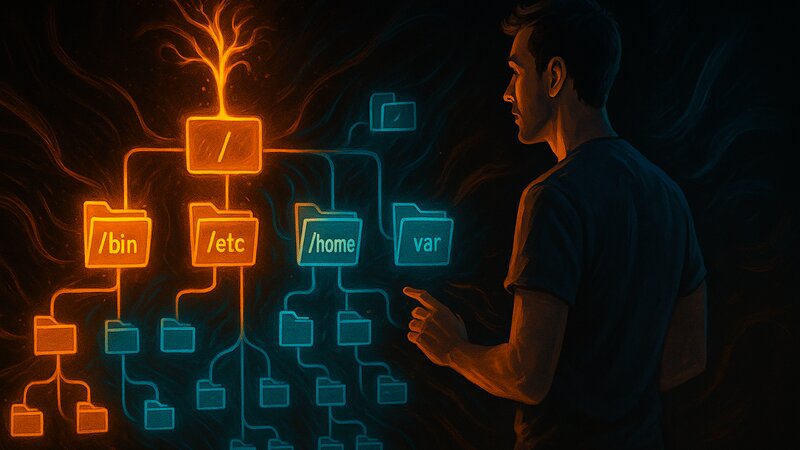
Linux and BSD organize all files into a single directory tree that begins at / (the root). Every directory has a defined purpose—/etc contains configuration files, /var stores variable data, and /home contains user home directories. This clear structure makes navigation and system maintenance consistent across Unix systems.
The Filesystem Hierarchy Standard (FHS) has defined this structure since 1994. Linux distributions largely follow this standard, while BSD systems use their own conventions based on similar principles. The basic structure remains the same—once you understand it, you can navigate any Unix system.
The Root Directory (/)
The root directory forms the root of the entire filesystem. Every other directory and file branches off from here. /home/michael/documents/report.pdf is a complete path with / as its starting point—the first / refers to the root directory, while the remaining / characters separate directory levels.
Unix does not use drive letters like Windows (C:, D:). USB drives, network shares, and additional disks are mounted into the existing directory tree—typically under /mnt or /media. Users see a seamless directory hierarchy even though files may physically reside on different storage devices.
The root directory itself should remain small. Many systems use separate partitions for /home, /var, or /usr—a full /var/log directory then cannot block the root filesystem. A completely full / makes the system unbootable because no temporary files can be created.
System Directories for Programs
/bin - Essential Commands
The /bin directory contains the fundamental programs required for booting and system recovery. ls, cp, mv, cat, mkdir, and the shell (bash, sh) are located here. These programs also work in single-user mode when /usr has not yet been mounted.
$ ls -l /bin/
lrwxrwxrwx 1 root root 7 Apr 15  2024 /bin -> usr/bin
Modern Linux distributions often implement /bin as a symbolic link to /usr/bin. The historical separation served a practical purpose: /bin had to reside on the root partition and be available early during boot, while /usr/bin could be located on a separate partition. Today this distinction is less relevant because most systems mount /usr automatically during boot.
/sbin - System Administration
/sbin contains programs for system administration that typically require root privileges. fdisk for partitioning, fsck for filesystem checks, reboot, and shutdown are located here. Regular users usually cannot execute these programs—/sbin is not part of the default PATH.
$ ls /sbin/ | head -5
fsck
fsck.ext4
mkfs
mkfs.ext4
reboot
Like /bin, /sbin is often a link to /usr/sbin on modern systems. The separation between /bin and /sbin reflects the distinction between general-purpose commands (for all users) and administrative tools (primarily for root).
/usr - Unix System Resources
The /usr directory contains most installed software. The name dates back to the 1970s, when /usr actually contained user home directories—today it is the opposite of user-specific data.
/usr/bin contains most of the programs users work with every day: editors, compilers, and networking tools. /usr/sbin contains additional administration programs. /usr/lib stores libraries, while /usr/share contains architecture-independent data such as documentation and icons.
$ du -sh /usr
5,2G    /usr
/usr is read-only for regular users. Only the package manager (apt, pacman, pkg_add) writes here during software installation or updates. This separation between system software (/usr) and variable data (/var, /home) simplifies backups and snapshots.
/usr/local - Local Additional Software
/usr/local follows the same structure as /usr, with /usr/local/bin, /usr/local/lib, and so on. This is where software is installed that does not come from the package manager—self-compiled programs or manually installed applications.
The package manager never modifies /usr/local. During system upgrades or reinstallations, this area remains unchanged. The clear separation prevents conflicts between system packages and manually installed software.
Configuration and Data Directories
/etc - System Configuration
The /etc directory contains all system and service configuration files. The origin of the name is unclear—“et cetera” and “editable text configuration” are popular theories. What is certain is that the system’s configuration files are stored here.
/etc/hostname defines the system hostname, /etc/hosts provides local name resolution, and /etc/fstab defines the filesystems to be mounted. Each service typically has its own subdirectory or configuration file: /etc/ssh/sshd_config for the SSH server and /etc/nginx/nginx.conf for nginx.
$ ls /etc/ | wc -l
247
A fresh Debian installation already contains more than 200 files and directories under /etc. Most are text-based and can be edited with a text editor. Distribution-specific differences are especially visible here—/etc/apt/ exists only on Debian-based systems, while /etc/pkg/ exists only on OpenBSD.
Configuration changes in /etc are not overwritten during system upgrades. The package manager creates .dpkg-old backups (Debian) or prompts when conflicts occur. This stability allows reliable system configurations to remain in place for years.
/var - Variable Data
The /var directory contains data that changes while the system is running. The name comes from “variable”—in contrast to the static files stored in /usr.
/var/log collects log files from all services. /var/cache stores temporary cache data. /var/spool contains queues—print jobs in /var/spool/cups, email in /var/spool/mail. /var/lib stores service-specific databases and state information.
$ du -sh /var/*
24M     /var/cache
4,0K    /var/crash
892M    /var/lib
16K     /var/local
4,0K    /var/lock
847M    /var/log
Log files in /var/log grow continuously. Without rotation, they eventually reach gigabyte sizes and fill the partition. Modern systems use logrotate to compress and remove old log files. A full /var prevents many services from operating—they can no longer write logs and stop functioning.
Many administrators use a separate partition for /var. A full /var/log then cannot block the root filesystem. The system remains bootable even when /var is 100% full—the administrator can log in and clean up the filesystem.
/tmp - Temporary Files
The /tmp directory provides storage for short-lived files. All programs and users can write here. Files are deleted during reboot—/tmp is not intended for permanent storage.
Many modern systems use tmpfs for /tmp—a RAM-based filesystem. Writes to /tmp are then stored in memory instead of on disk. This is faster and reduces SSD wear. The disadvantage is that large temporary files consume RAM. A tmpfs mounted on /tmp is typically limited to 50% of available memory.
$ df -h /tmp
Filesystem      Size  Used Avail Use% Mounted on
tmpfs           7.8G  156M  7.7G   2% /tmp
/var/tmp is an alternative for temporary files that should survive reboots. Programs use /var/tmp for larger temporary data or whenever persistence across reboots is required. Unlike /tmp, /var/tmp resides on disk rather than in RAM.
User-Related Directories
/home - User Home Directories
The /home directory contains the personal home directories of all regular users. Every user has a subdirectory: /home/michael, /home/sandra. Documents, downloads, configuration files, and all personal data are stored here.
Users have complete control over their own /home directory. Other users normally cannot access it—the permissions protect private data. Root can read every user’s home directory, while regular users can access only their own.
$ ls -ld /home/michael
drwxr-x--- 42 michael michael 4096 Oct  6 14:23 /home/michael
Many administrators use a separate partition for /home. During a reinstallation or distribution migration, /home remains untouched—only the operating system is reinstalled. Personal data, configuration files, and projects remain intact.
Hidden files (beginning with .) inside /home contain application configuration: .bashrc for the shell, .gitconfig for Git, and .ssh/ for SSH keys. These files define a user’s working environment—after reinstalling the operating system, everything works as before.
/root - Root User Home Directory
The /root directory is the home directory of the root user. It is not located under /home/root, but directly on the root partition. The reason is that root must still be able to log in if /home resides on a separate partition that cannot be mounted.
/root follows the same principles as regular home directories. Hidden files such as /root/.bashrc configure the root shell. Only the root user can access /root—regular users cannot even view its contents.
$ sudo ls -ld /root
drwx------ 8 root root 4096 Sep 28 09:12 /root
The permissions drwx------ indicate that only the owner (root) has access. No group permissions, no permissions for other users. This strict isolation protects root configuration files and data from unauthorized access.
Special Directories
/boot - Boot Loader and Kernel
The /boot directory contains everything required to boot the system: the Linux kernel, initramfs (the temporary root filesystem used during boot), and boot loader configuration. GRUB and other boot loaders load the kernel images stored here.
$ ls /boot/
config-6.1.0-25-amd64
grub/
initrd.img-6.1.0-25-amd64
System.map-6.1.0-25-amd64
vmlinuz-6.1.0-25-amd64
vmlinuz-* is the compressed kernel image, initrd.img-* is the initial RAM disk, and config-* contains the kernel configuration. During kernel upgrades, new versions are placed here while older versions are often retained for fallback boots.
Some systems use a separate /boot partition. This was once necessary because older BIOS systems could only read the first 1024 cylinders of a hard drive. With UEFI, this limitation no longer exists—a separate /boot partition is now optional.
/dev - Device Files
The /dev directory contains device files. Unix treats hardware as files—hard drives, USB devices, terminals, and sound cards all appear as files under /dev.
/dev/sda represents the first SATA hard drive, while /dev/sda1 represents its first partition. /dev/tty refers to virtual terminals, and /dev/null is a “black hole” for data—anything written to it disappears.
$ ls -l /dev/sda
brw-rw---- 1 root disk 8, 0 Oct  6 08:42 /dev/sda
The first character b indicates a block device (block-based read/write access). c would indicate a character device (character-by-character access). The numbers 8, 0 are the major and minor device numbers—they identify the device driver within the kernel.
/dev is usually a devtmpfs—a special filesystem maintained automatically by the kernel. When a USB drive is connected, /dev/sdb appears immediately. When it is removed, the file disappears. No administrator needs to create device files manually.
/proc - Kernel and Process Information
The /proc directory is not a real filesystem—it exposes kernel data and process information as files. /proc/cpuinfo contains CPU information, /proc/meminfo shows memory status. Every running process has its own directory: /proc/1234/ for process ID 1234.
$ cat /proc/cpuinfo | grep "model name" | head -1
model name      : AMD Ryzen 9 5900X 12-Core Processor
The files in /proc do not exist on disk. The kernel generates their contents on demand whenever they are read. Writing to certain files under /proc changes kernel parameters—/proc/sys/ provides access to sysctl settings.
/proc is read-only for regular users and partially writable by root. Programs such as top and ps read /proc to display process information. Without /proc, these tools could not function.
/sys - The System Filesystem
The /sys directory is similar to /proc, but focuses on hardware and kernel subsystems. It exposes the kernel’s internal device tree as a filesystem. /sys/class/net/ lists network interfaces, while /sys/block/ contains block devices.
$ ls /sys/class/net/
eth0  lo  wlan0
Modern system utilities read /sys for hardware information. udev uses /sys to apply device rules. When a USB drive is connected, udev reads information from /sys and creates the corresponding device files under /dev.
Like /proc, /sys exists only in RAM. Its contents are dynamic and reflect the current state of the kernel. Writing to it changes kernel settings—this is powerful functionality and should only be used with an understanding of the consequences.
Practical Navigation
Absolute vs. Relative Paths
Absolute paths begin with / and describe the path from the root directory: /home/michael/documents/report.pdf. They work regardless of the current directory—cat /etc/hostname always displays the same file.
Relative paths do not begin with / and are interpreted relative to the current directory. If your current location is /home/michael, cd documents changes to /home/michael/documents. .. refers to the parent directory, while . refers to the current directory.
$ pwd
/home/michael/projects/website

$ cd ../../sandra/documents
$ pwd
/home/sandra/documents
../../ means: move up two directory levels (from website to michael, then to home), then enter sandra, followed by documents. Relative paths are shorter for nearby locations, while absolute paths are unambiguous.
Understanding Standard Search Paths
The PATH environment variable defines where the shell searches for programs:
$ echo $PATH
/usr/local/bin:/usr/bin:/bin:/usr/local/sbin:/usr/sbin:/sbin
When you enter ls, the shell searches /usr/local/bin (not found), then /usr/bin (found), and executes /usr/bin/ls. The order matters—/usr/local/bin comes first, allowing locally installed programs to override system programs.
The root user has an extended PATH that includes /sbin and /usr/sbin. Regular users can invoke system administration programs only by specifying their full path: /sbin/fdisk works, while fdisk does not (unless it is included in PATH).
Where Is a File Located?
The which command shows which executable will be run:
$ which python3
/usr/bin/python3
locate finds files using a database (which must be up to date):
$ locate nginx.conf
/etc/nginx/nginx.conf
find searches the filesystem directly:
$ find /etc -name "*.conf" -type f
This searches /etc for all regular files ending in .conf. find is slower than locate, but it is always up to date and considerably more flexible.
Distribution Differences
FHS Variations
OpenBSD does not follow the FHS—it has its own conventions. /usr/local is considerably more important on OpenBSD than on Linux. Base system programs are installed under /usr, while all additional packages are installed under /usr/local. /etc/rc.d/ manages services rather than systemd or SysV init scripts.
FreeBSD uses /usr/local/etc/ for configuration files belonging to installed packages rather than /etc. System configuration remains in /etc, while software configuration is placed under /usr/local/etc/. This separation simplifies system upgrades.
Solaris and other commercial Unix variants provide additional directories such as /opt for large software packages. Each package receives its own subdirectory, for example /opt/software-name/. Linux distributions use /opt less frequently—most software is installed under /usr.
Distribution-Specific Paths
Debian systems use /etc/apt/ for package manager configuration, while Red Hat-based systems use /etc/yum.repos.d/. Arch Linux uses /etc/pacman.conf and /etc/pacman.d/. OpenBSD uses /etc/pkg.conf for pkg configuration.
These distribution-specific paths are covered in the corresponding operating system fundamentals series:
- Debian Fundamentals (planned) cover
/etc/apt/and Debian-specific structures. - OpenBSD Fundamentals (planned) explain
/etc/rc.d/and BSD conventions. - Arch Fundamentals (planned) cover
/etc/pacman.d/and systemd-related paths.
Summary
The Unix filesystem hierarchy follows clear principles: system files in /usr, configuration in /etc, variable data in /var, and user data in /home. This separation simplifies backups, snapshots, and system maintenance.
When you find /etc/nginx/nginx.conf on a Debian system, you know that nginx configuration resides under /etc/nginx/ on every other Unix system as well. The standard directories are predictable—log files are always stored in /var/log, temporary files in /tmp, and programs in /usr/bin or /usr/local/bin.
The remaining articles in this series cover directory and file permissions, links between files, and mounting filesystems into the directory tree.
Software and Versions Used
This discussion is based on:
- Filesystem Hierarchy Standard (FHS): 3.0
- Operating systems: Linux distributions (Debian, Arch, etc.) and BSD systems (OpenBSD, FreeBSD)
- Context: Universal for all Unix-like systems
- As of: October 2025
Next steps: